
Smart Task Manager
Modern desktop task management application
Built with Python and PyQt5, featuring an intuitive dark theme interface, priority-based organization, and automatic data persistence.
Version 1.3.0
Smart Task Manager is a feature-rich desktop application designed to help you efficiently organize and track your tasks. With a clean dark-themed interface, priority management, due date tracking, and automatic saving, it's the perfect tool for personal productivity.
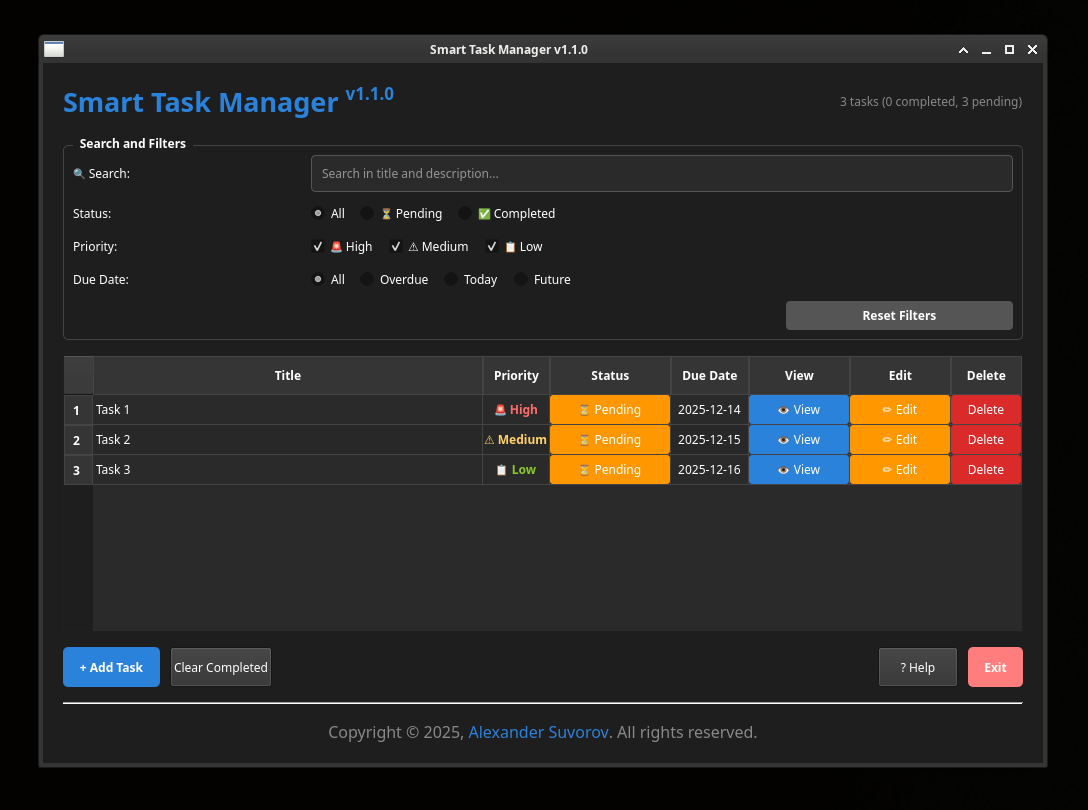
Task Management:
- Create tasks with title, description, priority, and due date
- Edit tasks anytime with full detail modification
- View task details in a dedicated dialog
- Delete tasks individually or clear completed tasks in bulk
- Double-click a task row or press Enter to open task details
Priority System:
- Three priority levels: High, Medium, Low
- Color-coded visual indicators for quick identification
Task Status:
- Toggle completion status with one click or
Space - Visual strikethrough for completed tasks
- Overdue task highlighting (red text for overdue items)
Data Management:
- Automatic saving to
~/.smart_task_manager/tasks.json - Persistent storage between sessions
- JSON-based data format for easy backup and migration
- JSON export to any file
- JSON import with automatic temporary backup before overwrite
- Statistics tracking (total, completed, pending tasks)
User Interface:
- Dark theme with modern styling
- Responsive table layout with resizable columns
- Context menu for quick actions (right-click on tasks)
- Task statistics displayed in real-time
- Menu bar (File / Edit / View / Help) with keyboard shortcuts
- Status bar with live feedback
- Compact single-row filters (search + status + priority + due date + reset)
Additional Features:
- Due date calendar picker with visual date selection
- Task descriptions with word wrap
- Overdue task notifications (visual indicators)
- Help documentation built into the application
- About dialog with project information
- Keyboard shortcuts dialog
- Confirmation dialogs for destructive actions
Prerequisites: Python 3.7+, PyQt5, Git (installer only), curl (installer only)
Option 1 - Run from Source (no system install)
git clone https://github.com/smartlegionlab/smart-task-manager.git
cd smart-task-manager
python3 -m venv venv
source venv/bin/activate
pip install -r requirements.txt
python app.py
Option 2 - Install System-Wide (recommended)
One-command install:
curl -fsSL https://raw.githubusercontent.com/smartlegionlab/smart-task-manager/master/install.sh | bash
What the installer does:
- Downloads the source code from GitHub.
- Installs the application to
~/.local/share/smart-task-manager/. No root, no sudo - everything lives inside your home directory. - Creates a dedicated Python virtual environment at
~/.local/share/smart-task-manager/venv/and installs dependencies into it. - Registers the app in your desktop environment by creating
~/.local/share/applications/smart-task-manager.desktop. - Refreshes the desktop database so the menu entry appears without a full re-login on most systems.
Launch after install: Application menu -> Smart Task Manager
Desktop shortcut (opt-in):
By default, no Desktop shortcut is created. This is intentional - on GNOME (default on Ubuntu), desktop icons are hidden by default, which would make a shortcut invisible and confusing.
To also create a Desktop shortcut during install, pass the STM_CREATE_DESKTOP_SHORTCUT=1 environment variable to bash - the second command in the pipeline:
curl -fsSL https://raw.githubusercontent.com/smartlegionlab/smart-task-manager/master/install.sh | STM_CREATE_DESKTOP_SHORTCUT=1 bash
Or export it first, then run the normal installer:
export STM_CREATE_DESKTOP_SHORTCUT=1
curl -fsSL https://raw.githubusercontent.com/smartlegionlab/smart-task-manager/master/install.sh | bash
Note: Writing STM_CREATE_DESKTOP_SHORTCUT=1 curl ... | bash does not work - in a shell pipeline, an environment variable prefix applies only to the command on the left side of the |. The variable never reaches bash, which is on the right side. Pass it to bash directly, or export it beforehand.
Alternative - install from a cloned repo:
cd smart-task-manager
./install.sh
Uninstall
curl -fsSL https://raw.githubusercontent.com/smartlegionlab/smart-task-manager/master/uninstall.sh | bash
What the uninstaller removes:
~/.local/share/smart-task-manager/- the application and its venv~/.local/share/applications/smart-task-manager.desktop- the menu entry~/Desktop/smart-task-manager.desktop- the Desktop shortcut (if present)
What the uninstaller never touches:
~/.smart_task_manager/tasks.json- your tasks. It is your data. Only you decide what to do with it.
If you want to remove your data as well, run after uninstall:
rm -rf ~/.smart_task_manager
Installation Paths
| Item | Path |
|---|---|
| Application files | ~/.local/share/smart-task-manager/ |
| Virtual environment | ~/.local/share/smart-task-manager/venv/ |
| Application menu entry | ~/.local/share/applications/smart-task-manager.desktop |
| Desktop shortcut (opt-in) | ~/Desktop/smart-task-manager.desktop |
| User data (tasks) | ~/.smart_task_manager/tasks.json |
Creating a New Task:
- Click the "+ Add Task" button or use File -> New Task (
Ctrl+N) - Fill in the task details:
- Title (required): Brief description of the task
- Description (optional): Detailed notes
- Priority: Select from High, Medium, or Low
- Due Date: Choose from the calendar picker
- Click "Create Task"
Managing Tasks:
- Toggle Completion: Click the status button, or press
Space - View Details: Double-click the row, press
Enter, or click "View" - Edit Task: Click the "Edit" button, or press
Ctrl+E - Delete Task: Click the "Delete" button, or press
Delete
Quick Actions (Context Menu):
Right-click on any task in the table to access:
- Mark as Complete/Pending
- Edit Task
- View Details
- Delete Task
Bulk Operations:
- Clear Completed Tasks: Click "Clear Completed" or use File -> Clear Completed (
Ctrl+Shift+C) - Exit Confirmation: Application warns if unsaved tasks exist on exit
Import and Export:
- Export: File -> Export... (
Ctrl+Shift+E) writes all tasks to a JSON file - Import: File -> Import... (
Ctrl+I) replaces the current dataset with a JSON file - A temporary backup of the current data file is created automatically before import
- Import is validated and rejected if the format does not match
- File: Create Desktop Entry (
Ctrl+Shift+D, Linux only), New Task (Ctrl+N), Import (Ctrl+I), Export (Ctrl+Shift+E), Clear Completed (Ctrl+Shift+C), Exit (Ctrl+Q) - Edit: Edit Selected Task (
Ctrl+E), Delete Selected Task (Delete), Toggle Completion (Space) - View: Focus Search (
Ctrl+F), Refresh (F5), Reset Filters (Ctrl+R) - Help: Help (
F1), Keyboard Shortcuts (Ctrl+/), About (Ctrl+A)
| Shortcut | Action |
|---|---|
Ctrl+N | New task |
Ctrl+I | Import data |
Ctrl+Shift+E | Export data |
Ctrl+Shift+D | Create desktop entry (Linux) |
Ctrl+Shift+C | Clear completed tasks |
Ctrl+Q | Exit application |
Ctrl+E | Edit selected task |
Delete | Delete selected task |
Space | Toggle completion of selection |
Enter | View details of selected task |
Ctrl+F | Focus search box |
Ctrl+R | Reset filters |
F5 | Refresh view |
F1 | Open help |
Ctrl+/ | Show keyboard shortcuts dialog |
Ctrl+A | Open about dialog |
Note: If you installed the app via install.sh, the application menu entry is already created automatically. The in-app option described below is useful when you run the app manually from a custom location, or when you want to add a Desktop shortcut on demand. It is also the recommended way for development: it creates a shortcut pointing to the currently running instance (your working copy), not to a copy under ~/.local/share/.
Creating Application Shortcuts:
The application allows you to create desktop entries directly from the menu:
- Go to File -> Create Desktop Entry (
Ctrl+Shift+D) - Choose locations:
- Application Menu (
~/.local/share/applications/) - adds to system app menu - Desktop (
~/Desktop/) - creates shortcut on desktop
- Application Menu (
- Click "Create Entry"
After creation:
- Application Menu: log out and back in (or restart desktop) for the entry to appear
- Desktop shortcut: may show "Unsecured Application Launcher" warning. Right-click on shortcut -> "Allow Launching" or "Trust". This is a one-time security confirmation
File Location:
Tasks are automatically saved to: ~/.smart_task_manager/tasks.json
The folder ~/.smart_task_manager/ is created automatically on first run.
Data Format:
{
  "task-uuid-here": {
    "id": "uuid-string",
    "title": "Task Title",
    "description": "Task Description",
    "priority": 1,
    "completed": false,
    "created_at": "2025-12-05T10:30:00.000000",
    "due_date": "2025-12-10"
  }
}
Backup & Migration:
- Simply copy the
~/.smart_task_manager/tasks.jsonfile to back up your tasks - Use File -> Export... to write a JSON copy anywhere
- Use File -> Import... to load a JSON file (overwrites current data, temporary backup is created automatically)
- The JSON format is human-readable and editable
Architecture:
- Model:
Taskclass representing individual tasks - Controller:
TaskManagerhandling data persistence and operations - Service:
ImportExportServicehandling import/export with validation and backup - View: PyQt5-based GUI with dialog windows and table view
Key Components:
- MainWindow: Primary application interface with menu bar, filters, task table, status bar
- TaskInputDialog: Modal dialog for creating/editing tasks
- TaskDisplayDialog: Modal dialog for viewing task details
- AboutDialog: Project information dialog
- HelpDialog: Built-in help documentation
- ShortcutsDialog: Keyboard shortcuts reference
- DesktopEntryDialog: Linux desktop integration
- Context Menu: Right-click menu for quick task operations
Dependencies:
- PyQt5: GUI framework
- Python Standard Library: json, os, shutil, tempfile, uuid, datetime, typing
- "ModuleNotFoundError: No module named 'PyQt5'"
pip install -r requirements.txt
- Application won't start
- Ensure Python 3.7+ is installed
- Check file permissions on
~/.smart_task_manager/tasks.json
- Tasks not saving
- Verify write permissions in home directory
- Check disk space availability
- Import fails
- The file must be a JSON object where each value has
idandtitle - Export from Smart Task Manager always passes validation
- On failure, the current data file is restored from the temporary backup
- The file must be a JSON object where each value has
- UI elements look wrong
- Ensure all dependencies are installed
- Try restarting the application
By using this software, you agree to the full disclaimer terms.
Software provided "AS IS" without warranty. You assume all risks.
Full legal disclaimer: See DISCLAIMER.md
License: BSD 3-Clause License